🚨 CRITICAL REQUIREMENT: xiloader 🚨
⚠️ WARNING: You WILL NOT be able to join the game without this file!
This custom xiloader is completely unique to our server. Do not skip this step or attempt to use another loader.
Please download the latest release before proceeding.
Download xiloader (v2.1.2) ➜Download Our Custom Launcher
The absolute easiest and fastest way to install and play Dragon Ball FFXI!
🎮 Download Launcher (.exe)How to Install & Play:
- Download the DragonballFFXILauncher.exe file using the button above.
- Run the Launcher.
Note: You may need to click 'More Info' -> 'Run Anyway' if Windows SmartScreen prompts you. - Select Install Directory. Choose where you want the game to be installed on your PC. The launcher will automatically download and verify all the necessary game files for you.
- Play! Once the installation is 100% complete, simply click "Play" on the launcher to jump directly into Vana'diel!
-- OR --
Follow the manual installation guide below if you prefer the classic method.
Pre-installation Requirements
Before you start, verify that you have the following installed for FFXI, PlayOnline, and Windower. Even if you're on a 64-bit system, you'll need these x86 (32-bit) versions:
- Microsoft .NET Framework 4.0
- Microsoft .NET Framework 4.5.2
- Visual C++ 2010 x86 Runtime
- Visual C++ 2012 x86 Runtime
- Visual C++ 2013 x86 Runtime
- Visual C++ 2015 x86 Runtime
- Visual C++ 2017 x86 Runtime
- Enable DirectPlay within Windows Legacy Components (Windows 8 and higher only).
Configuring PlayOnline and Updating
-
Open PlayOnline and let it update (and restart it if it asks).
-
PlayOnline will prompt you if you're a New User or Existing User. Choose For PlayOnline Members.
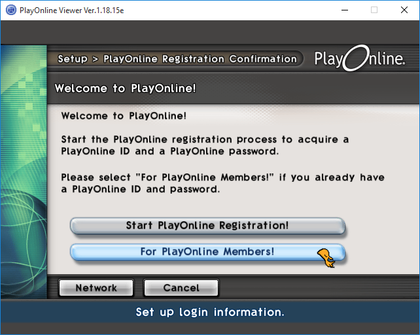
-
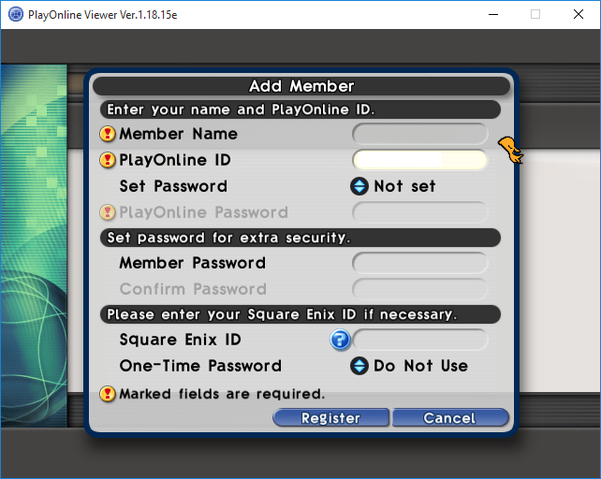
Set ABCD1234 as the username, password, and account ID for your new account. This just allows you far enough in to access the file check. A valid PlayOnline or SquareEnix ID is not required.
-
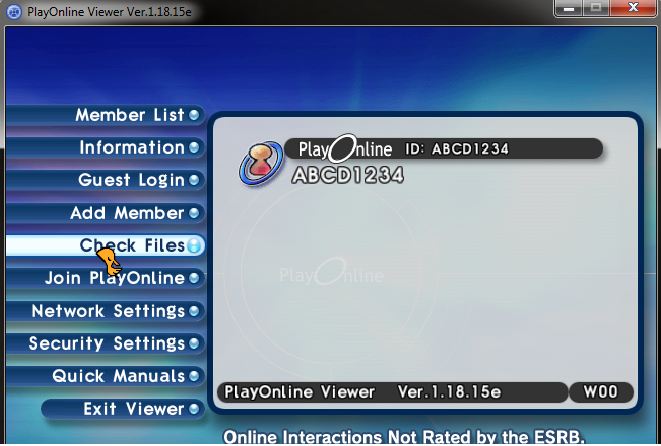
On the left side of the screen, click Check Files.
-
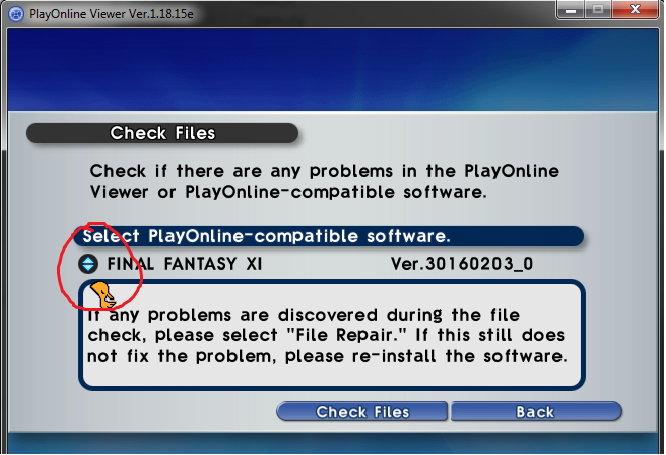
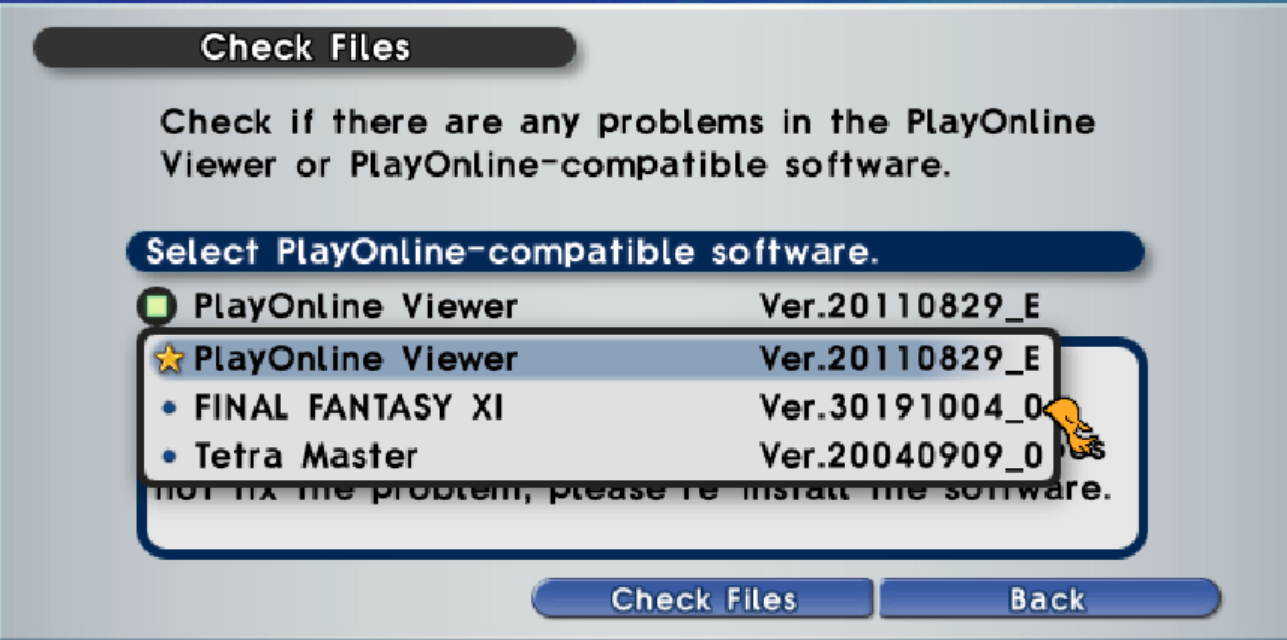
On the Check Files Screen where it says "PlayOnline Viewer", select the down arrow to select "FINAL FANTASY XI".
NOTE: If "Final Fantasy XI" doesn't show up, you can download a patch to resolve the issue:
- Close the PlayOnline Viewer.
- Download the Private server Patch. This resets your install to a state that it can be easily updated.
- Unzip the patch into your \PlayOnline\SquareEnix\FINAL FANTASY XI folder.
- Open the PlayOnline Viewer, click Check Files.
- In the drop down list, "FINAL FANTASY XI" should now show up with "Unknown" as the version. Proceed.
-
Click the Check Files button with "FINAL FANTASY XI" highlighted to begin the check.
-
This process is validating your current files and should take 20-25 minutes. Once complete, it'll prompt you to begin the update to fix errors. Choose to "Fix the errors".
-
PlayOnline will start checking and updating files. This can take 2-4 hours depending on your computer speed and internet connection.
-
Once everything is updated, exit PlayOnline.
-
The last step is copying the PlayOnline Viewer's data folder into the FFXI folder.
- Navigate to \PlayOnline\SquareEnix\PlayOnlineViewer and copy the \data folder.
- Navigate to the \PlayOnline\SquareEnix\FINAL FANTASY XI folder and paste that folder in there.
- You should now have a \data folder in your FINAL FANTASY XI folder.
You're done and ready to configure your game client!
Windower Configuration
If you are using Windower to launch the game, you must configure your settings.xml profile so that it connects to our server using xiloader.exe.
<profile name="Dragon Ball FFXI">
    <consolekey>Insert</consolekey>
    <uiscale>1</uiscale>
    <args>--server 73.80.154.33</args>
    <executable>C:\Program Files (x86)\PlayOnline\SquareEnix\PlayOnlineViewer\xiloader.exe</executable>
</profile>
Your settings file should look exactly like this image:

Client Updates/Patches
When the server updates to a new client version, players need to update their client to be inline. Here's a quick guide to ensure a smooth update.
Option 1 - Easiest
- Close Final Fantasy XI and PlayOnline Viewer.
- Navigate to your \PlayOnline\SquareEnix\FINAL FANTASY XI directory.
- Find VTABLE.DAT and DELETE IT.
- Open PlayOnline Viewer.
- Click Check Files on the left side.
- Click the dropdown and select FINAL FANTASY XI. It should say either Unknown OR the prior version.
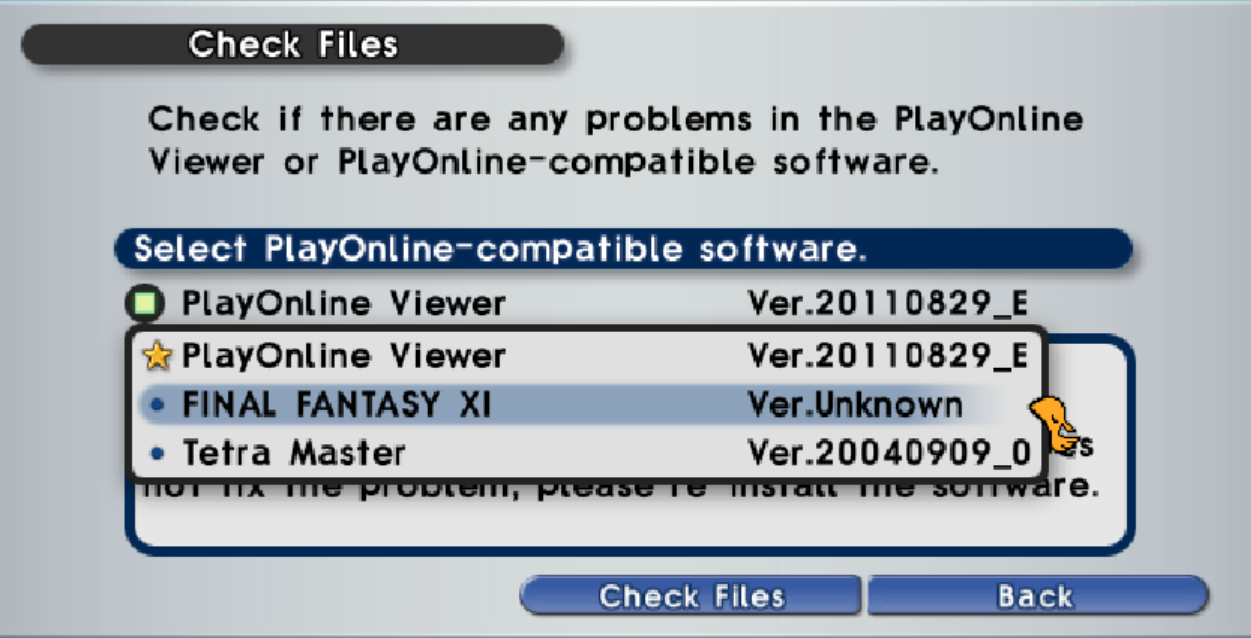
- Click Check Files with FINAL FANTASY XI selected.
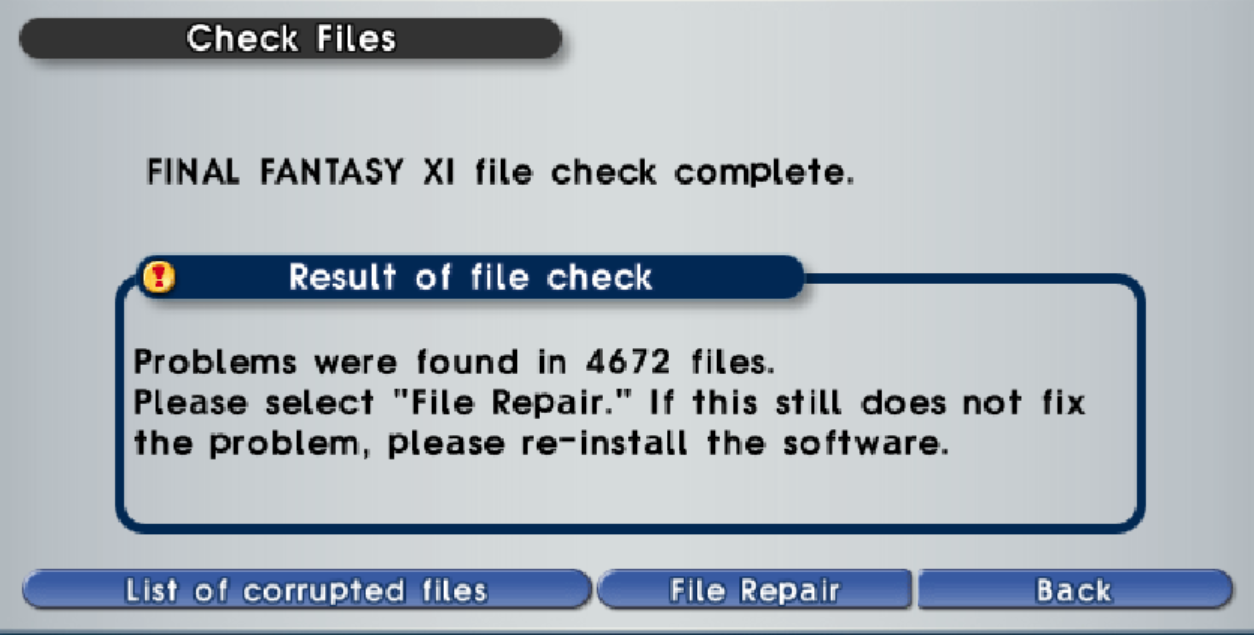
- The File Check should return that there were problems with files (it may only list VTABLE.DAT). Click File Repair.
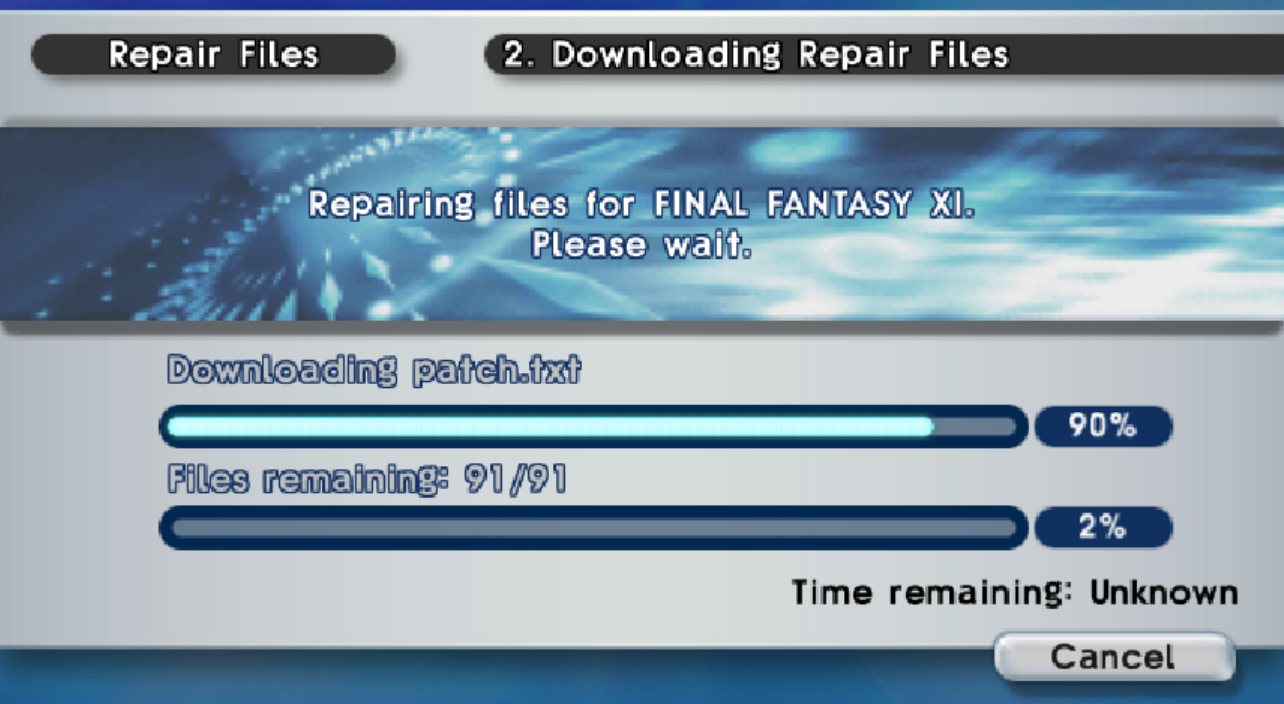
- The File Check will determine what files to update. This process can take a few minutes.
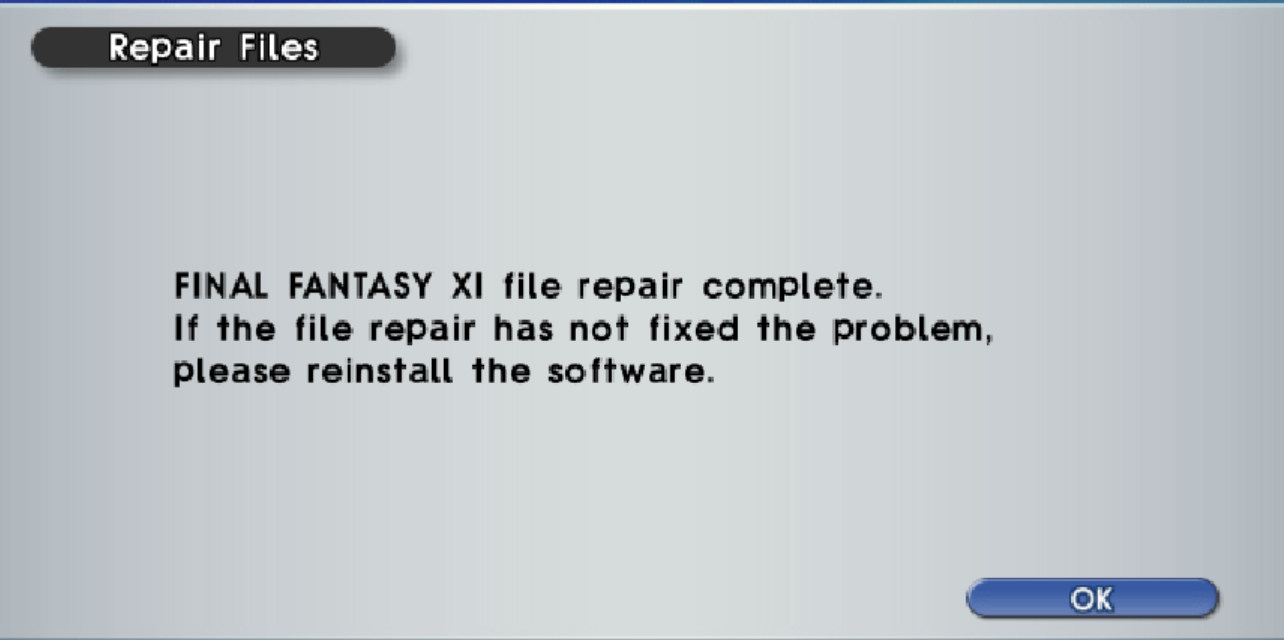
- Once the update is complete, click OK.
- Click Check Files again and select FINAL FANTASY XI. It should now list the current version.
- You're done! Close PlayOnline Viewer. You can now launch using your preferred loader (like xiloader).
Option 2 - Force It!
- Close Final Fantasy XI and PlayOnline Viewer.
- Download the DSP patch from the community Discord.
- Unzip the patch into your \PlayOnline\SquareEnix\FINAL FANTASY XI folder and override the files.
- Open PlayOnline Viewer.
- Click Check Files on the left side.
- Click the dropdown and select FINAL FANTASY XI. It should say Unknown for the version.
- Follow the same File Repair steps as Option 1 until it says complete.